Self- Scheduling & Calendar
Self-Scheduling
From the Oasis homepage, search for the neighbor’s case by clicking “Search” and using the fields to type their name. Once you locate the case, click on their name and then click the “Appointments” tab on the right.
Click the Self-Scheduling Link to copy it to your clipboard, then email or share it with the neighbor so they can schedule their own appointment. You can also click the envelope icon and then click “Send Email” to send the scheduling link to the neighbor by email. Once the neighbor schedules an appointment, your team will receive an email notification.
Calendar View
To view all appointments, go to “My Agency” and click “Appointments.” You can filter appointments by type or date range. Use the drop-down menu under “View” to switch between “List” View, “(Calendar) Week” View, or “(Calendar) Month” View. To see open appointment times, check the box labeled “Show Available Slots.” Click any open slot to view or manage availability.
Blockout Dates
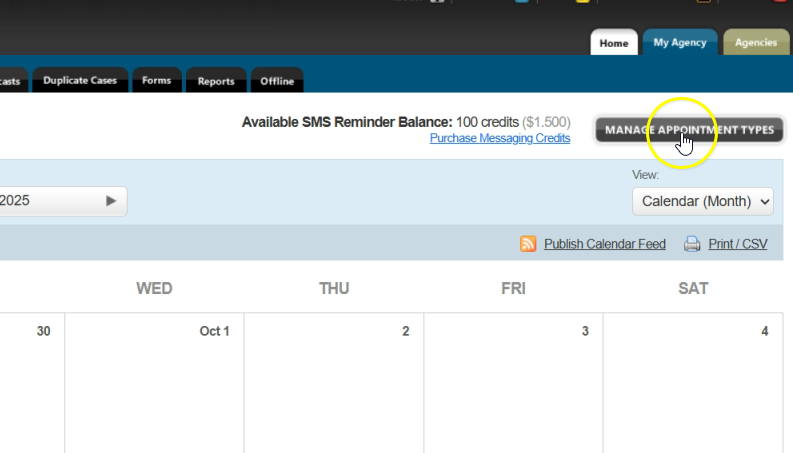
If your agency will be closed for certain dates (such as maintenance days), you can block those dates to prevent scheduling. Begin from the Appointments page and click “Manage Appointment Types.”
Click “Manage Blockout Dates.” This will take you to the Blockout Dates page, where you can view any existing blockout dates. To add a new Blockout date(s), click “Add Blockout Dates.” Enter a name, description, dates, and then click “Add Blockout Dates.” Once saved, appointments cannot be scheduled for those dates.
Calendar Integration
To add your appointments from Oasis to your Outlook or Google Calendar, begin on the Appointments page and click “Publish Calendar Feed.” In the pop-up window, switch the toggle from Off to On. Choose which appointment types and details to include, then copy the calendar link by clicking the calendar link in the “ICS Feed URL” box.
Adding Appointments to Outlook Calendar
Open your Outlook Calendar and then click “Add Calendar.” Click “Subscribe from web” and paste the copied link. Name your calendar for your neighbor appointments in Oasis, and then click “Import.” After a few moments, your Oasis appointments will appear on your Outlook calendar automatically.
Adding Appointments to Google Calendar
Open your Google Calendar. In Google Calendar, click the plus sign next to “Other Calendar” and select “From URL.” Paste the copied link and select “Add Calendar.” After a few moments, your Oasis appointments will appear on your Google calendar automatically.