eHarvest Users
Add a New User
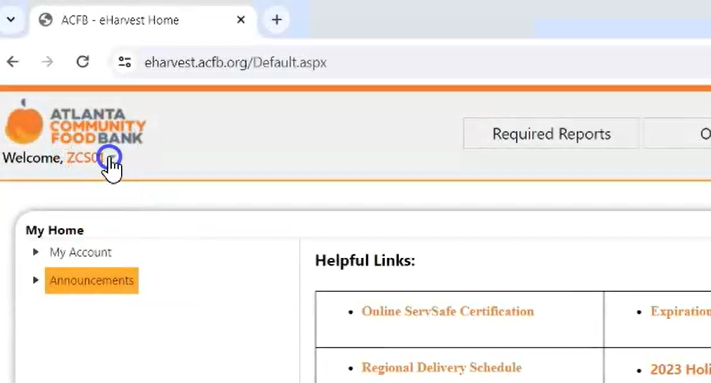
To add a new account user, begin by selecting the drop-down arrow next to ‘Welcome, Account User’.
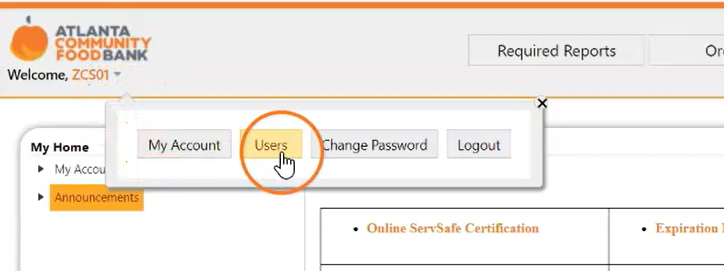
Select ‘Users’ from this menu.
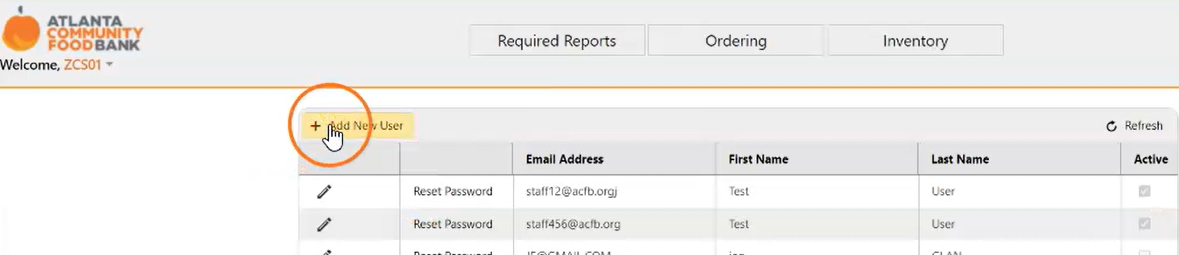
In the top-left corner, select the ‘Add New User’ button.

Fill in the required fields to provide contact information for this new user. New users will automatically be marked as ‘Active’.
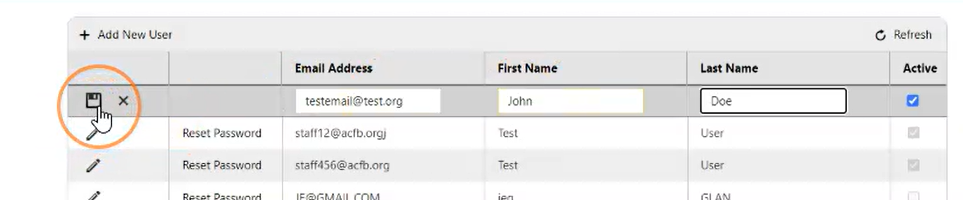
Once you have ensured that the correct contact information has been filled out, select the square disk icon to save your changes.
Edit Existing User
To edit an existing user, click on the drop-down arrow next to ‘Welcome, Account User’. Select ‘Users’ from this menu.

Select the pencil icon to edit the desired user. Make your desired changes to the contact information for that account user.
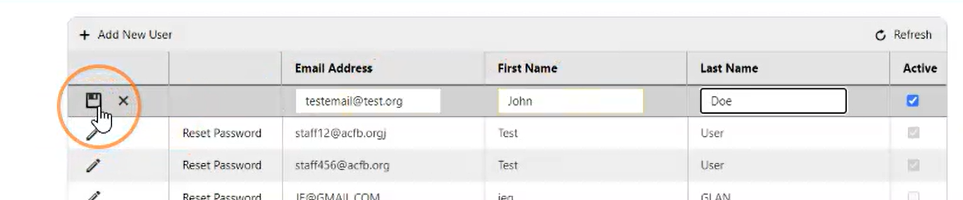
Once your changes have been made, select the square disk icon to save your desired changes.
Deactivate User
To deactivate an existing user, begin by selecting the drop-down arrow next to ‘Welcome, Account User’.
Select the pencil icon next to the user that you want to deactivate.
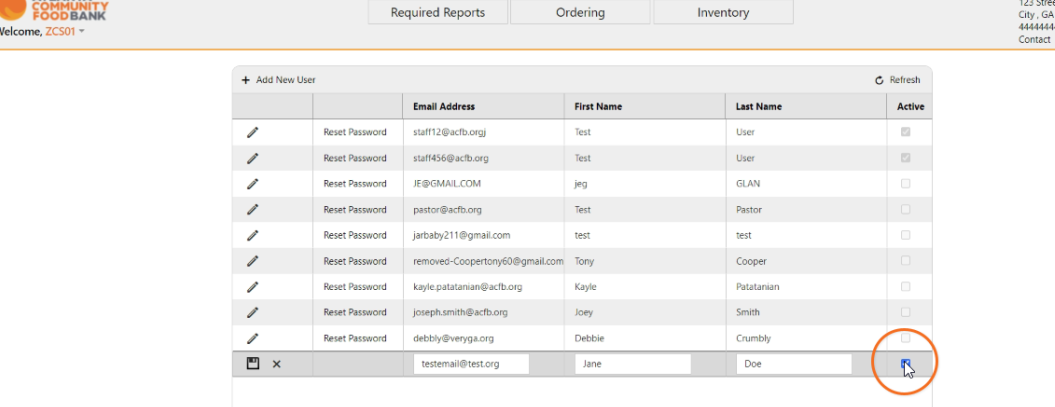
Uncheck the box underneath ‘Active’ to indicate that this user is no longer active.
Once you have unchecked the ‘Active’ box, save these changes by selecting the square disk icon.