Generate Your Monthly TEFAP Report in Oasis
Generating your Monthy TEFAP Report in Oasis
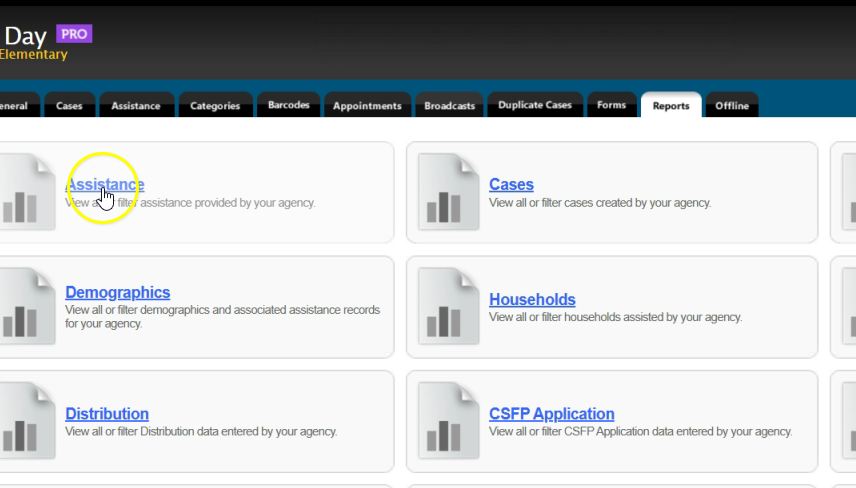
Begin by selecting the “My Agency” tab on the Oasis homepage. Click on the “Reports” tab. From here, click on “Assistance.”

Select “Table” to choose the format of your report. Click “Filter by Date of Assistance” to enter the date range of your report.
After you enter the date range of your report, scroll down, and click on “Filter by Assistance Category.” Scroll down to the “TEFAP” filter. Select “TEFAP: TEFAP – Electronic Signature.” Select “Next” at the bottom to select which fields to display on the report.
Only select the following options: “Summary: Case Count” and “Summary: Household Count.” Click “Save & View Report,” and then copy your results into eHarvest.
To Save Your TEFAP Report as a Template
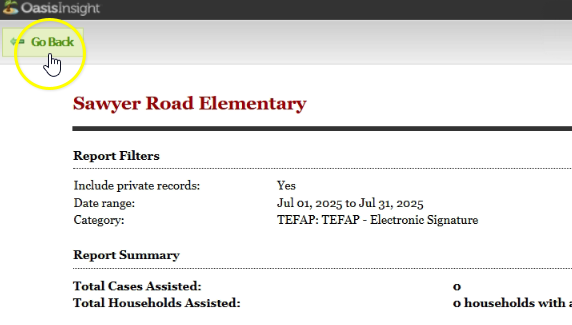
Click “Go Back” in the top left corner of the “Agency Assistance Report.” This will return you back to the “Reports” tab in Oasis.
Once you are on the reports page, scroll down to the “Recent Reports” section. Click “Add to Saved Reports.” Once the report is moved the “Saved Reports” section, click “Edit.” When the “Add Report” box appears, rename your report “Monthly TEFAP Report Template” and click “Save & Continue.”
You will be returned back to the Assistance Report menu. From here, scroll down and click “Save & Continue.” When this menu appears, do not make any changes to the filters or fields for the report. Click on “Save & Close” to finalize your template.
To Run Your Monthly Report
From the Oasis homepage. Navigate to “My Agency.” Click on the “Reports” tab. Scroll down to the “Saved Reports” section. To the right of your report template, choose “Edit” and click “Save & Continue.”
In the first drop down section, enter the dates for the month you are running the report for. Do not edit any other filters. Scroll down and select “Save & Continue.” When the next menu appears, select “Save & View Report.” Copy your results into eHarvest.