Grants: Grant Application
Navigating the Partner Portal (Signing In)
From your invitation email, click the link provided to you. The link will take you to the sign-in page.
Click the “Sign In” button, and a verification code will be sent to your email. Copy the verification code from your email and go back to the Partner Portal and paste it in the space provided. Click “Sign In.”
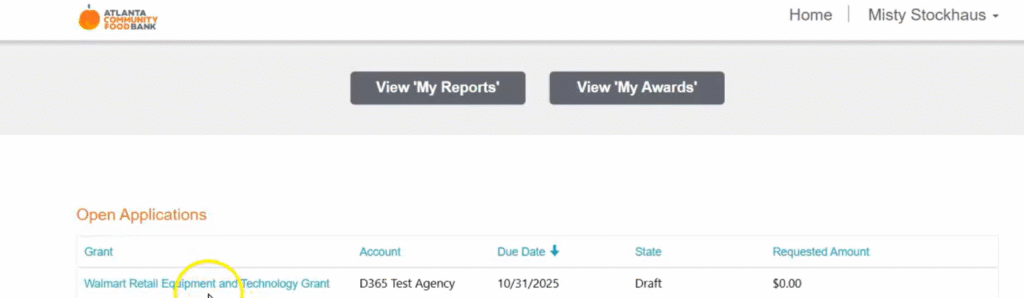
Open Grant Application
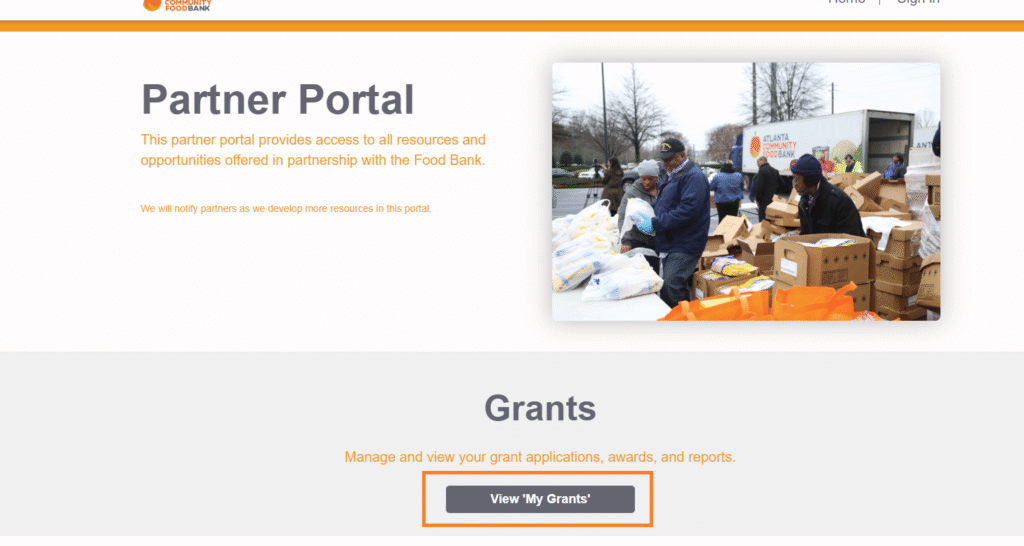
From the Partner Portal, select “View My Grants.”
Under “Open Applications”, select the most recent grant.
Requested Items
After reading the grant overview, click “Next.”
The Requested Items page will then appear.
From the Requested Items page, click the “Add” button. Under “Item Requested,” enter the name of the item you are requesting.
Use the drop-down menus to select the appropriate Category and Subcategory for the item.
Leave “Secondary Item” set to “No,” unless you are using leftover funds for this request.
Enter the quoted amount for the requested item, then enter the requested amount. Click “Add File” to upload quotes from a reputable vendor, and then click “Submit.”
**Repeat this process until all requested items have been entered.**
Questions
After all requested items have been entered, click “Next” to navigate to the Questions tab.
Click each question and provide a complete response, then click “Submit” after each answer.
You can drag the corner of the answer text box to expand it if needed. Once all of the questions have been completed, click “Next” to proceed.
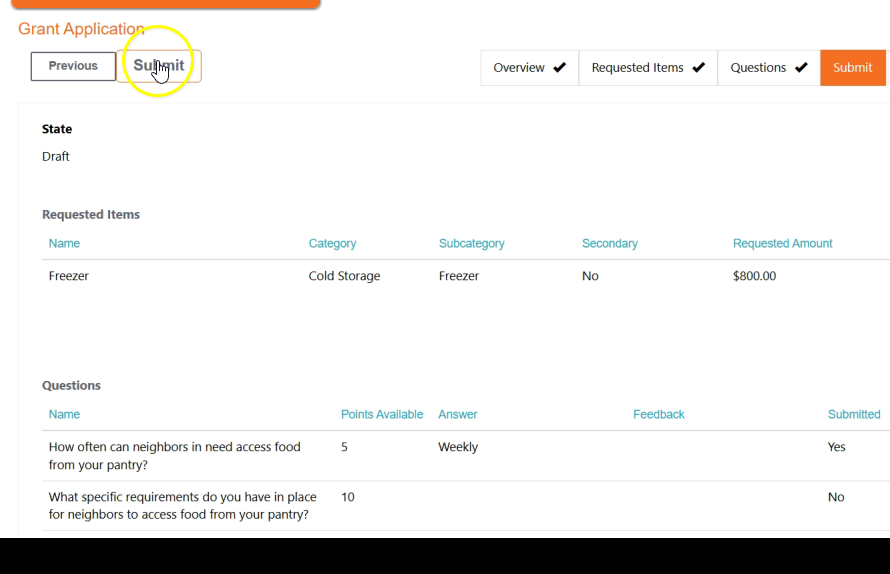
The Grant Application Summary page will appear. Take a moment to review and ensure all submitted information is accurate.
Once confirmed, click “Submit.” The state of the application will change from “Draft” to “Submitted.”